How to Redeem an App Store Offer Code on iPhone
If you received an App Store offer code for Ultimate Streamer, you can activate it in just a couple of minutes. First redeem the code in the App Store, then check the offer inside the app.
You can watch the short video tutorial or follow the illustrated step-by-step guide.
Install Ultimate Streamer :)
If you have not installed the app yet, download Ultimate Streamer from the App Store. Make sure you are signed in with the same Apple ID that will redeem the offer code.
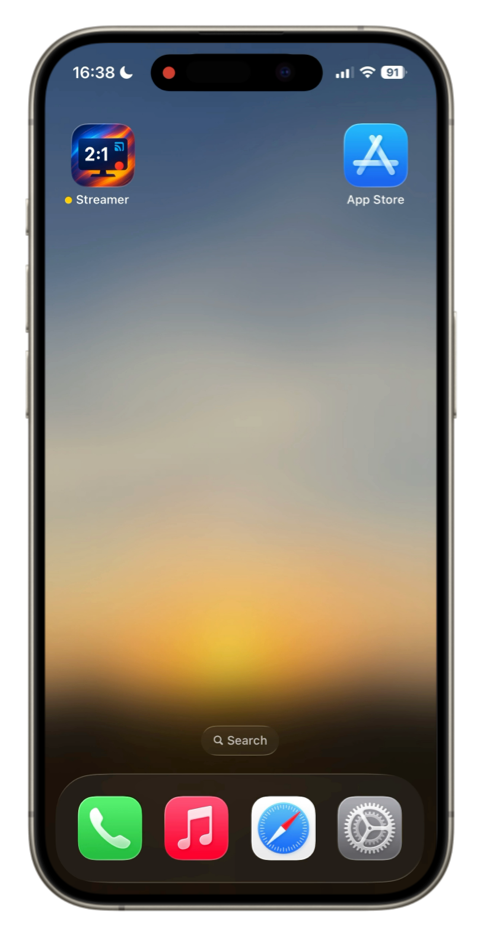
Step 1. Open the App Store app on your iPhone
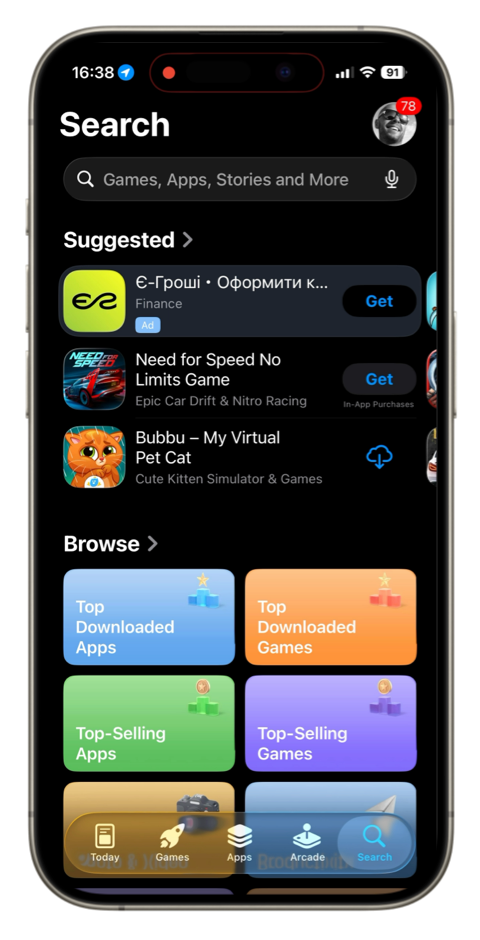
Step 2. Open your App Store profile
Tap your profile picture in the upper-right corner of the screen.
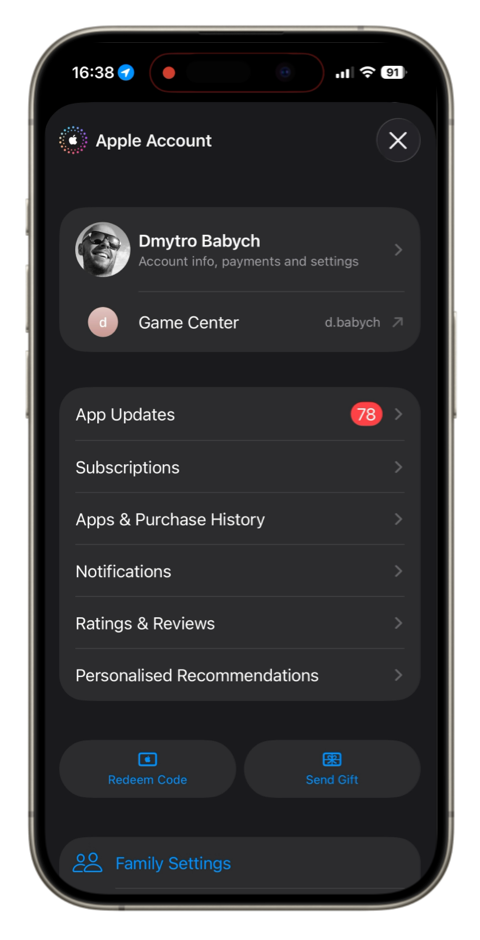
Step 3. Tap “Redeem Code”
On your account screen, find and tap Redeem Code.
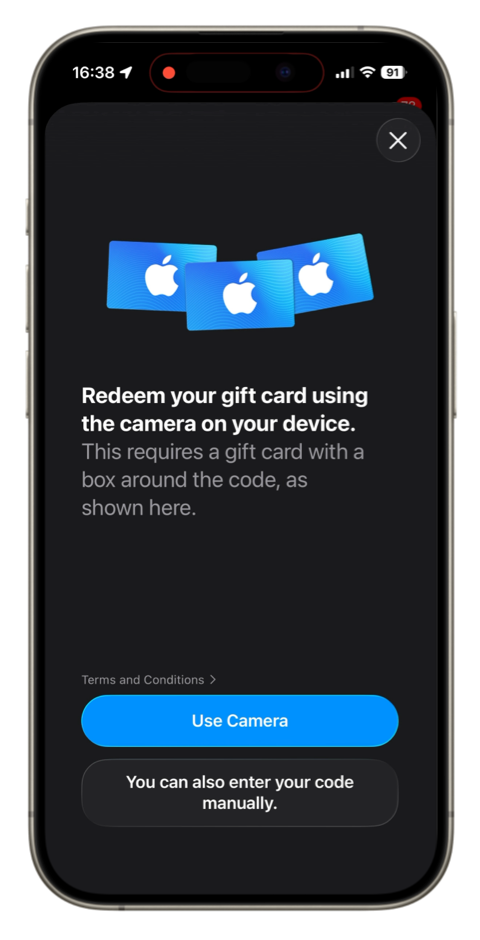
Step 4. Choose how to enter your code
You can either scan it with the camera or enter it manually.
Step 5. Enter your offer code
Type or paste the code you received.
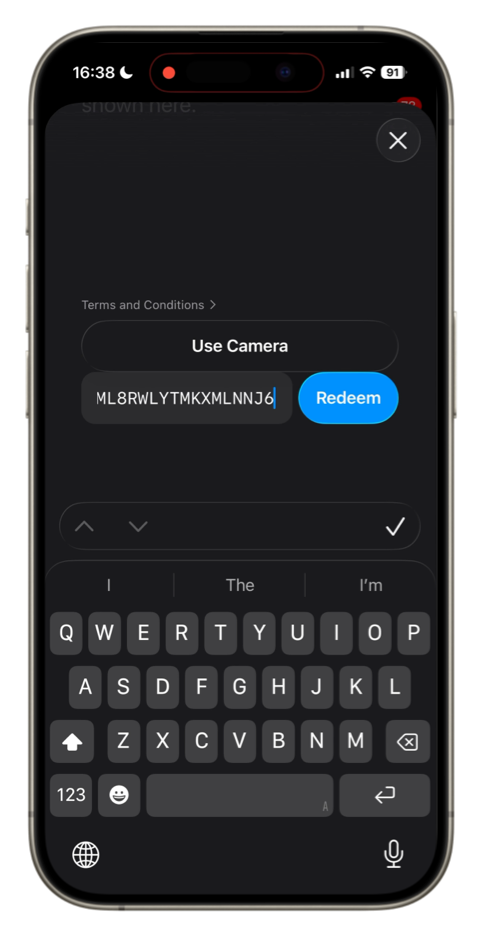
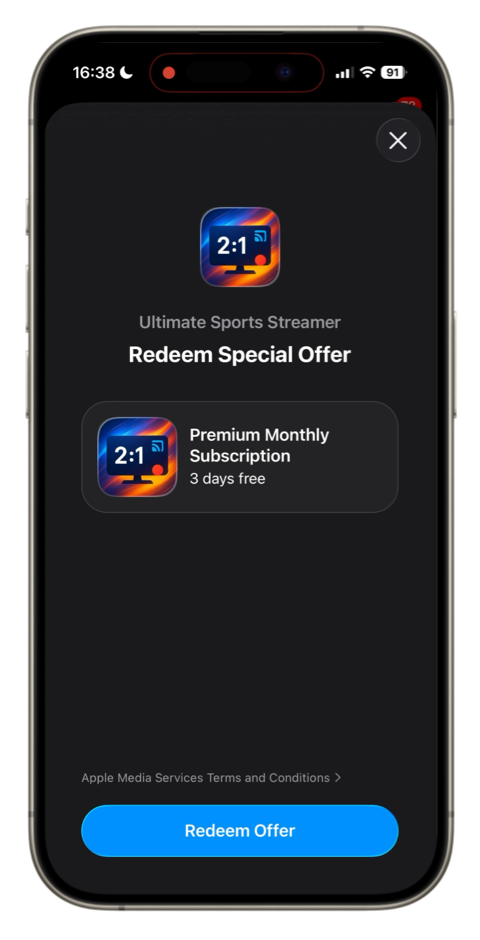
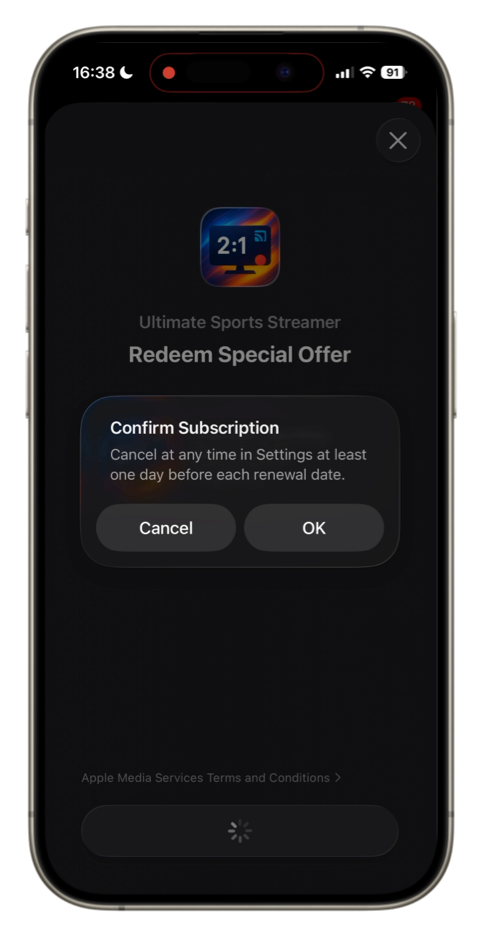
Step 6. Tap “Redeem Offer” and confirm
Confirm the redemption on the next screen.
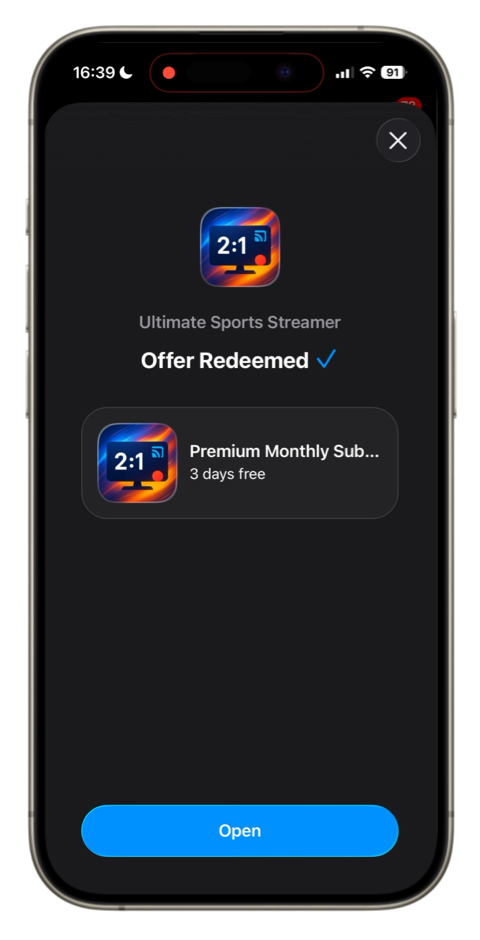
Step 7. Open Ultimate Streamer
Wait until the offer code is redeemed, then open Ultimate Streamer.
Step 8. Open Ultimate Streamer settings
Tap the gear button in the upper-right corner to open settings.
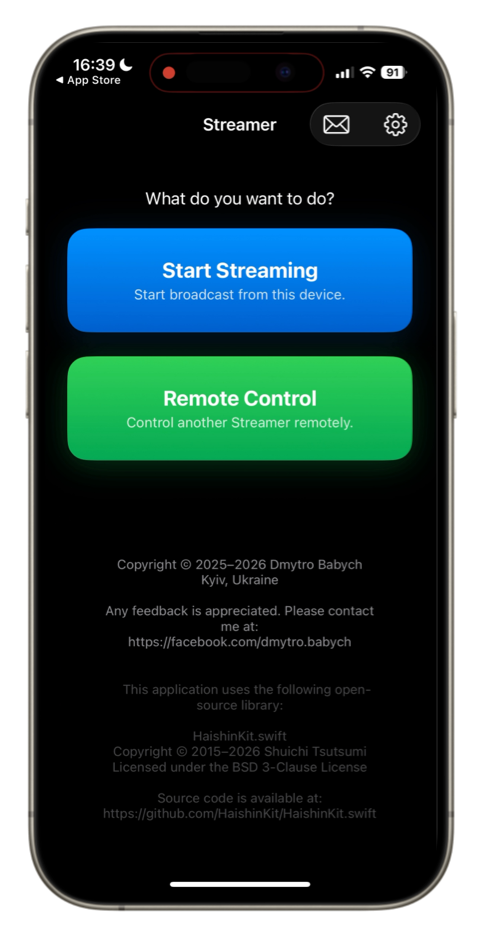
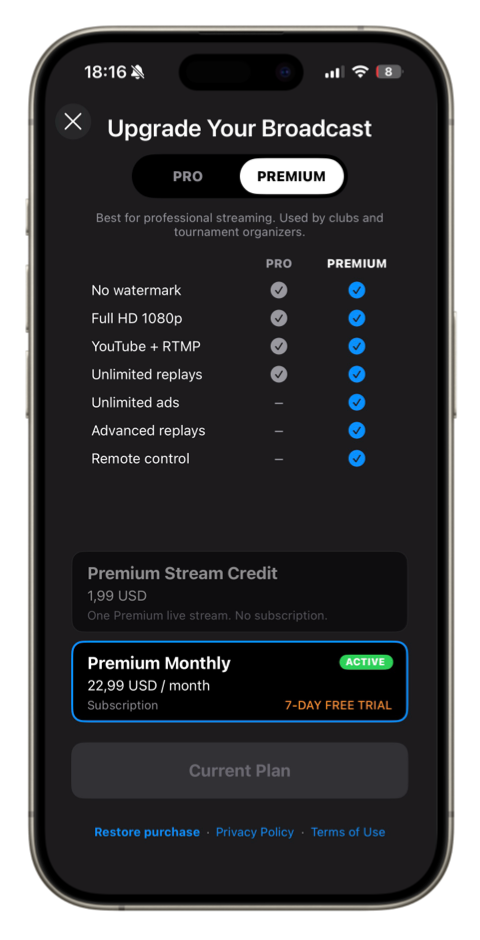
Step 9. Check whether your offer is active
Make sure your offer has been activated.
If not, help the app refresh it. At the bottom of the settings screen, tap Restore Purchases. Wait a moment while the app updates your subscription status.
Troubleshooting
If the code is accepted in the App Store but the offer does not appear in Ultimate Streamer, first check that you redeemed the code with the correct Apple ID.
Then reopen the app Settings and tap Restore Purchases.
If you still have trouble, contact us here and include a short description of the issue.
After activation, you can go back to the app and start streaming your games with scoreboards, replays and other broadcast tools available in Ultimate Streamer.